
Alibaba Cloud OSS (Recommended for China)
Switch the EasyStarter storage provider to Alibaba Cloud OSS, reusing the RAM AccessKey
Alibaba Cloud OSS Storage
EasyStarter ships with Alibaba Cloud Object Storage Service (OSS) as a built-in storage provider. You can switch between OSS and the default Cloudflare R2 at any time. The server talks to OSS directly through the OSS REST API V4 with OSS4-HMAC-SHA256 signing — no Node.js SDK is required, so it runs natively on the Cloudflare Workers runtime.
If your product is mostly used inside mainland China, Alibaba Cloud OSS usually gives more stable latency and cheaper egress than Cloudflare R2. It also reuses the same RAM AccessKey as the Alibaba Cloud phone sign-in integration, which keeps operations simple.
| Item | Current setup |
|---|---|
| Upload / download / list / delete | OSS REST API V4 with OSS4-HMAC-SHA256 signing |
| Server provider | apps/server/src/storage/providers/aliyun-oss.ts |
| Provider registration | apps/server/src/storage/index.ts |
| Provider switch | common.storage.provider in packages/app-config/src/app-config.ts |
| Public access path | ${SERVER_URL}/api/storage/aliyun-oss/<key> (proxied by the server; the bucket itself stays private) |
The existing avatar and attachment upload types, MIME allowlists, and size limits are provider-agnostic. Switching to OSS does not require any change to business code.
Required Environment Variables
# Shared with the Alibaba Cloud phone sign-in integration
ALIBABA_CLOUD_ACCESS_KEY_ID=
ALIBABA_CLOUD_ACCESS_KEY_SECRET=

# OSS-specific
ALIYUN_OSS_BUCKET=
ALIYUN_OSS_REGION=
ALIYUN_OSS_ENDPOINT=
What each variable means:
| Variable | Meaning | Example |
|---|---|---|
ALIBABA_CLOUD_ACCESS_KEY_ID | RAM user AccessKey ID, the long-term credential used by the server | LTAI5tXXXXXXXXXXXXXXXXX |
ALIBABA_CLOUD_ACCESS_KEY_SECRET | RAM user AccessKey Secret, shown only once on creation | XXXXXXXXXXXXXXXXXXXXXXXXXXXXXXXX |
ALIYUN_OSS_BUCKET | OSS bucket name, without any domain | your-app-bucket |
ALIYUN_OSS_REGION | Region ID of the bucket, used as the region scope when signing | cn-hangzhou |
ALIYUN_OSS_ENDPOINT | OSS access domain — must not include the bucket name or the protocol | oss-cn-hangzhou.aliyuncs.com |
ALIYUN_OSS_ENDPOINT must be the region-level public endpoint, e.g. oss-cn-hangzhou.aliyuncs.com. If you set it to your-app-bucket.oss-cn-hangzhou.aliyuncs.com, the provider will prepend the bucket again and produce an invalid host.
If you already configured ALIBABA_CLOUD_ACCESS_KEY_ID / ALIBABA_CLOUD_ACCESS_KEY_SECRET for phone sign-in, you can reuse the same AccessKey — just grant the existing RAM user additional OSS permissions.
Activate Object Storage Service
Make sure your Alibaba Cloud account has OSS activated and identity verification completed.
Product page: Alibaba Cloud Object Storage Service (OSS). Click Buy Now / Activate Now at the top of the page to enable the service.
Create an OSS bucket
Official docs: Create a bucket
- Log in to the OSS Console
- Click Buckets → Create Bucket
- Enter a Bucket name, e.g.
your-app-bucket(globally unique, 3-63 characters, lowercase letters, digits, and hyphens only) - Choose a Region, e.g.
China (Hangzhou), which maps to the region IDcn-hangzhou - Keep ACL as the default Private — files are served through a server-side proxy, the bucket does not need public access
- Accept defaults for the rest and click OK
Record the following:
- Bucket name →
ALIYUN_OSS_BUCKET - Region ID (the part after
oss-in the bucket overview, e.g.cn-hangzhouinoss-cn-hangzhou) →ALIYUN_OSS_REGION - Public endpoint (the Endpoint (External) field on the bucket overview, e.g.
oss-cn-hangzhou.aliyuncs.com) →ALIYUN_OSS_ENDPOINT
Grant the RAM user OSS permissions
Use a RAM user AccessKey instead of an Alibaba Cloud root account AccessKey. If you already created a RAM user for phone sign-in, simply attach an additional policy to the same user.
- Log in to the Alibaba Cloud RAM Console
- Go to Identities → Users and select the target RAM user
- Open Permissions → Grant Permission
- Set Resource Scope to Account, search and check the system policy
AliyunOSSFullAccessunder Policy, then click OK to grant the permission
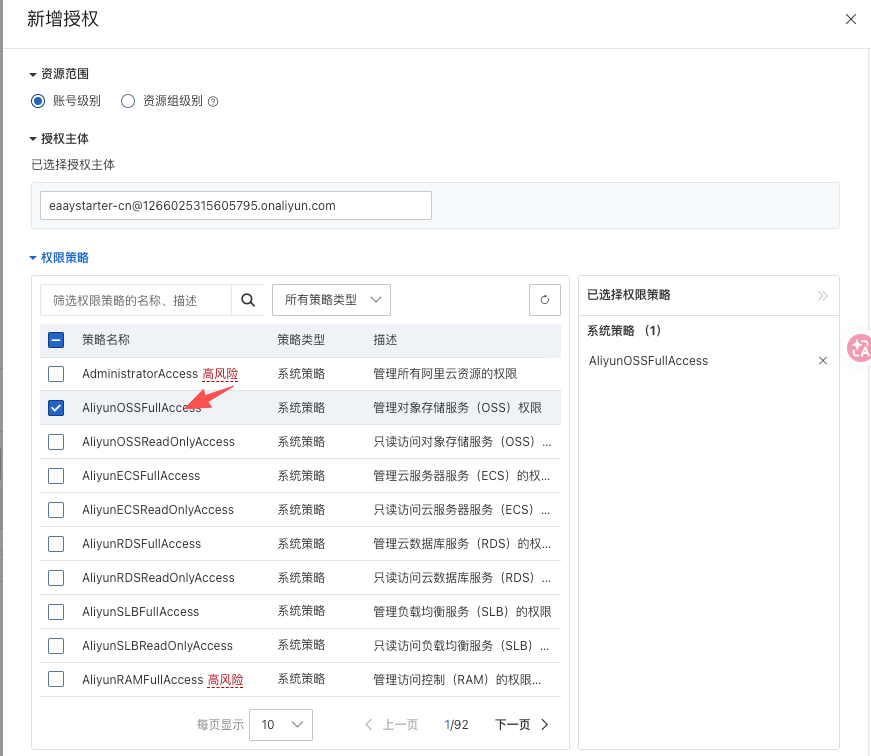
This is the approach Alibaba Cloud officially recommends. Once the system policy is attached, the RAM user can read and write OSS objects.
Create or reuse the AccessKey
Official docs: Create an AccessKey pair
If you do not have an AccessKey yet:
- Open the Authentication or AccessKey tab on the RAM user detail page
- Click Create AccessKey and complete the security challenge
- Copy and save immediately:
AccessKey ID→ALIBABA_CLOUD_ACCESS_KEY_IDAccessKey Secret→ALIBABA_CLOUD_ACCESS_KEY_SECRET
The AccessKey Secret is shown only once. If you lose it, you must disable the old AccessKey and create a new one.
If you already configured a RAM user AccessKey for phone sign-in, reuse it instead of creating another AccessKey for the same user.
Switch the storage provider
In packages/app-config/src/app-config.ts, change common.storage.provider from "r2" to "aliyun-oss":
storage: {
  enabled: true,
  provider: "aliyun-oss", // change from "r2" to "aliyun-oss"
  publicPath: "/api/storage",
  // ...rest unchanged
},
After this change, every avatar / attachment upload, download, list, and delete routes through the OSS provider automatically. Business code, upload components, and Better Auth avatar logic do not need to change.
Fill in local and production environment variables
For local development, add to apps/server/.dev.vars:
ALIBABA_CLOUD_ACCESS_KEY_ID=your-access-key-id
ALIBABA_CLOUD_ACCESS_KEY_SECRET=your-access-key-secret

ALIYUN_OSS_BUCKET=your-oss-bucket
ALIYUN_OSS_REGION=your-oss-region
ALIYUN_OSS_ENDPOINT=your-oss-endpoint
For production deployment, add to apps/server/.env.production:
ALIBABA_CLOUD_ACCESS_KEY_ID=your-access-key-id
ALIBABA_CLOUD_ACCESS_KEY_SECRET=your-access-key-secret

ALIYUN_OSS_BUCKET=your-oss-bucket
ALIYUN_OSS_REGION=your-oss-region
ALIYUN_OSS_ENDPOINT=your-oss-endpoint
After switching to OSS, R2_PUBLIC_URL is no longer needed and can be removed from both files. The r2_buckets binding (STORAGE) in apps/server/wrangler.jsonc is unused as well — you can keep it so you can switch back, or remove it.
Push secrets to production
Before deploying to Cloudflare Workers, push the secrets:
pnpm -F server secrets:bulk:productionAfter a successful push, the Worker runtime reads these values via env.ALIBABA_CLOUD_ACCESS_KEY_ID, env.ALIBABA_CLOUD_ACCESS_KEY_SECRET, env.ALIYUN_OSS_BUCKET, env.ALIYUN_OSS_REGION, and env.ALIYUN_OSS_ENDPOINT. Re-run this command whenever any of those values change — you do not need to redeploy code just because a secret changed.
Verify uploads locally
Start the server and the web client:
pnpm dev:server
pnpm dev:web
Sign in and upload an avatar from the profile page. The frontend posts the file to /api/storage/upload, the server calls the OSS provider's put method and writes the file under avatars/<userId>/..., and returns a public URL similar to:
http://localhost:3001/api/storage/aliyun-oss/avatars/<userId>/<uuid>.pngReads are proxied back through /api/storage/aliyun-oss/<key>, so the bucket itself stays private.
You can confirm the object in the OSS Console Files view, and opening the public URL above in a browser should render the image.